|
|
|
|
Secure File Copy
DiskBoss Server provides secure file copy operations allowing one to copy files from one server to another without using network shares while encrypting transferred data blocks using the AES-256 encryption algorithm. The user is provided with the ability to encrypt and/or compress transferred data blocks, transfer selected types of files or categories of files, exclude specific directories from the file copy operation and tune the performance of the file copy process for user-specific needs and hardware configurations. 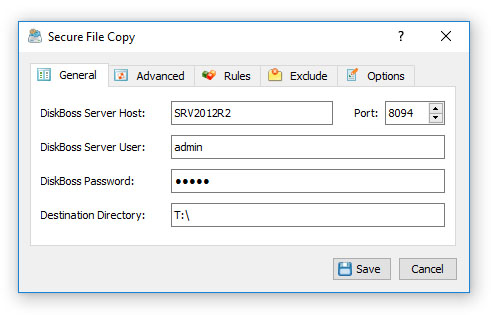
In order to perform a secure file copy operation, the user needs to install DiskBoss Server on the destination server and DiskBoss Ultimate or DiskBoss Server on the source server. For each secure file copy operation, the user can specify an unlimited number of source directories or files, the host name or an IP address of the destination DiskBoss Server and a directory on the destination server to copy files to. 
In order to enable encryption and/or compression of transferred data blocks for a secure file copy operation, open the secure file copy command dialog, select the 'Options' tab and enable all the required file transfer options. When the user enables the AES-256 encryption algorithm, DiskBoss dynamically generates a random encryption key for each transferred file. When the user enables the verification of copied files, DiskBoss verifies all transferred data blocks using the SHA256 data signature algorithm. Secure File Copy Commands DiskBoss Server provides the user with the ability to configure an unlimited number of secure file copy commands with each one copying files from one or more input directories on the source server to a directory on the destination DiskBoss Server. In addition, DiskBoss allows one to configure multiple secure file copy operations copying files to multiple different destination DiskBoss Servers. 
In order to add a secure file copy command, press the right mouse button over the commands view, select the 'Add New - Secure File Copy Command' menu item and specify a unique command name. 
On the secure file copy command inputs dialog, add one or more source directories or files to be copied to the destination DiskBoss Server. By default, DiskBoss Server will copy the specified source directories sequentially, but in order to increase the speed of the secure file copy operation, the user is provided with the ability scan directories and/or copy files in parallel using a user-specified number of parallel file copy threads. Once finished adding source files and directories, press the 'Next' button. On the secure file copy 'General' tab, enter the host name or an IP address of the destination DiskBoss Server to copy files to. In addition, the user needs to specify the DiskBoss user name and password to login to the destination DiskBoss Server (default is admin/admin). Optionally, in the case the destination DiskBoss Server is configured to use a custom TCP/IP port (default is 8094), the user needs to configure an appropriate TCP/IP port number. Finally, the user needs to specify a directory on the destination DiskBoss Server to copy files to.
In order to transfer files, the source DiskBoss Server will connect to the destination DiskBoss Server using the TCP/IP protocol and the configured TCP/IP port should be open in the destination server's firewall. Control messages sent from the source DiskBoss Server to the destination server are always encrypted using the AES-256 encryption algorithm with dynamically generated random encryption keys unique for each DiskBoss Server. Also, the user is provided with the ability to encrypt all transferred files using the AES-256 encryption algorithm with a dynamically generated random encryption key for each transferred file. 
By default, due to security reasons, server-to-server file transfers are disabled and the user is required to explicitly enable server-to-server file transfers on the destination DiskBoss Server. In order to enable server-to-server file transfers, connect to the destination DiskBoss Server using the DiskBoss client GUI application, press the 'Options' button located on the main toolbar, select the 'General' tab, enable the 'Server-To-Server File Transfers' option and press the 'Save' button. Secure File Copy Options DiskBoss Server provides a large number of secure file copy options allowing one to customize the secure file copy operation for user specific needs. In order to customize secure file copy options, select the secure file copy command, press the right mouse button, select the 'Edit Command' menu item and select the 'Options' tab.
Secure File Copy Advanced Options DiskBoss Server is optimized for modern multi-CPU/multi-core platforms, Gigabit Ethernet networks and RAID storage arrays. The user is provided with a large number of customization options allowing one to customize the behavior and performance of secure file copy operations for user-specific needs and hardware configurations. 
Secure File Copy Rules DiskBoss secure file copy operations provide the ability to copy files matching user-specified rules. For example, the user is provided with the ability to copy all types of document files with the file size more than X MB that were modification during the last month. Multiple different types of file matching rules may be used to precisely select files to be copied. 
In order to add one or more file matching rules to a secure file copy command, open the command options dialog, select the 'Rules' tab, press the 'Add' button, select a rule type and enter all required parameters. During the file copy process, DiskBoss will select files using the specified file matching rules and copy files matching the rules to the destination directory. 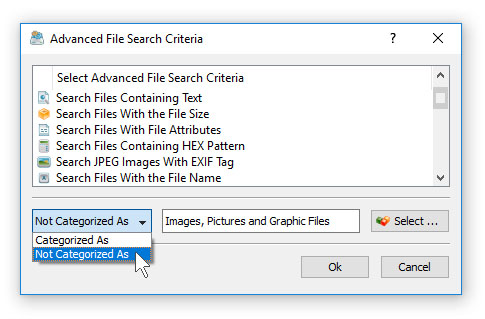
In addition to positive file matching rules allowing one to copy specific types of files, the user is provided with negative file matching rules capable of excluding files by the file type, size, last modification date, etc. For example, in order to exclude all types of images from the file copy process, add a file matching rule to process files 'Not Categorized as Images' to the secure file copy command. Secure File Copy Exclude Directories Sometimes, it may be required to exclude one or more subdirectories from a secure file copy operation. In order to exclude one or more directories, open the secure file copy options dialog, select the 'Exclude' tab and add directories that should be excluded from the secure file copy process. 
In addition to the ability to exclude individual directories, DiskBoss provides a number of exclude directories macro commands allowing one to exclude multiple directories using a single macro command.
For example, the exclude macro command '$CONTAINS Temporary Files' will exclude all directories with 'Temporary Files' at any place in the full directory path and the exclude macro command '$REGEX \.(TMP|TEMP)$' will exclude directories ending with '.TMP' or '.TEMP'. Secure File Copy Command Line Utility In addition to the DiskBoss GUI application, DiskBoss Ultimate and DiskBoss Server provide a command line utility allowing one to perform secure file copy operations from a source server with DiskBoss Ultimate or DiskBoss Server to a destination DiskBoss Server. The DiskBoss command line utility is located in the '<Install Dir>\bin' directory. Command Line Syntax:
diskboss -scopy -dir <Source Directory> -host <Host Name> -dest <Directory> Executes a secure file copy operation with the specified command line parameters. diskboss -execute <Preconfigured Secure File Copy Command> Executes a preconfigured secure file copy operation. Required Parameters:
-dir <Source> -host <Destination Host> -dest <Destination Directory> At least one source file or directory, destination server host name or an IP address and a destination directory should be specified. In order to ensure proper parsing of command line arguments, directories and file names containing space characters should be double quoted. Optional Parameters:
-compress This option enables compression of transferred data blocks. -encrypt This option enables encryption of transferred data blocks using the AES-256 encryption algorithm with a dynamically generated random encryption key for each transferred file. -verify This option enables verification of all transferred data blocks using the SHA-256 data signature algorithm and retransmission of corrupted data blocks. -streams <Parallel File Copy Streams> This parameter specifies the number of simultaneous file copy streams. -time This parameter enables copy of the creation, last modification and last access dates for all copied files. If this parameter is not specified, all files copied to the destination directory will have timestamps set to the time of the copy operation. -overwrite_mode <File Overwrite Mode> This option specifies the file overwrite mode, which may be set to one of the following values:
-port <Port Number> This parameter specifies the destination DiskBoss Server TCP/IP port number to connect to. If this parameter is not specified, DiskBoss will try to connect to the default TCP/IP port 8094. The port should be open in the destination server's firewall. -user <DiskBoss Server User Name> This parameter specifies the user name to login to the destination DiskBoss Server. If this parameter is not specified, DiskBoss will use the default (admin) user name. -password <DiskBoss Server Password> This parameter specifies the password to login to the destination DiskBoss Server. If this parameter is not specified, DiskBoss will use the default (admin) password. -v This command shows the product's major version, minor version, revision and build date. -help This command shows the command line usage information.
|
DiskBoss News
|