|
|
|
|
High-Speed File Synchronization
DiskBoss provides advanced file synchronization capabilities allowing one to synchronize files between local disks, directories, network shares, NAS storage devices and enterprise storage systems. The DiskBoss file synchronization engine is capable of synchronizing files using multiple one-way and two-way file synchronization modes, provides performance tuning options, periodic and real-time file synchronization capabilities and allows one to synchronize specific file types and categories. 
In order to synchronize a pair of directories, press the 'Sync' button located on the main toolbar, enter the source and destination directories and press the 'Preview' button. DiskBoss will scan the specified source and destination directories, compare files between the source and destination directories and show a list of file synchronization actions that should be performed. 
On the file synchronization preview dialog, review sync actions, select/unselect actions that should be performed and press the 'Sync' button to execute the selected file synchronization actions. Optionally, press the 'Options' button to control advanced file synchronization options or press the 'Export' button to save file synchronization actions to an HTML, XML, text or Excel CSV report. The DiskBoss file synchronization engine is especially optimized for modern hardware and storage devices and is capable of effectively utilizing RAID storage devices, multi-core/multi-CPU systems and Gigabit networks delivering maximum possible performance. File Synchronization Modes Depending on specific needs, it may be required to perform different types of file synchronization operations. For example, sometimes users may be interested in keeping all files in the destination directory even when some of them were deleted from the source directory. Another option is to perform two-way accumulation and update keeping both directories completely identical. DiskBoss provides eight different one-way and two-way file synchronization modes allowing one to perform different types of file synchronization operations according to user-specific needs and requirements. 
In order to change the file synchronization mode for a file synchronization command, open the file synchronization command dialog, select the 'General' tab and select one of the following file synchronization modes:
Synchronizing Files Without Preview Sometimes, when the user needs to synchronize large directories or disks containing many thousands of files, file synchronization with preview may be ineffective or completely inappropriate especially due to the fact that none will have the time to review lists of file synchronization actions containing huge amounts of items. Moreover, unattended file synchronization operations performed periodically at specific time intervals or triggered by a disk change monitor, should be performed fully automatically without requiring any user intervention. 
In order to disable the preview dialog for a file synchronization operation, open the operation dialog and set the process mode combo box to 'Sync Without Preview'. The stream file synchronization more is especially designed for file systems containing huge amounts of files and is capable of synchronizing large directories, disks and NAS storage devices very fast and effectively. In addition, the stream file synchronization mode is ideal for automated, periodic file synchronization operations performed in the background without any user intervention. Synchronizing Specific File Types or Categories of Files DiskBoss provides the ability to synchronize specific types of files or file groups using one or more user-specified file matching rules. For example, the user can synchronize all types of documents, images and music files, while skipping all other types of files from the file synchronization process. In order to add one or more file matching rules to a file synchronization command, open the file synchronization options dialog, select the 'Rules' tab and press the 'Add' button. On the 'Rules' dialog select an appropriate rule type and specify all the required parameters. 
During the file synchronization process, DiskBoss will scan the source and destination directories and apply the specified file matching rules to all processed files. Files not matching the specified rules will be skipped from the file synchronization process effectively limiting the file synchronization operation to the user-specified files only. 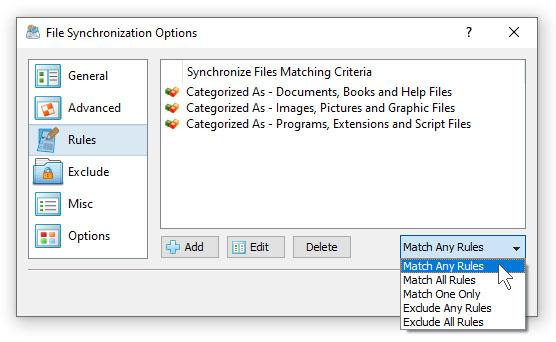
Sometimes, it may be required to synchronize a number of different types of files and skip all the other files. In this case, the user can add multiple file matching rules with each one selecting a specific type of files and then set the rules logic to 'Match Any Rules'. Another option to specify which types of files to synchronize is to use the file extension rule, which provides the ability to select files by one or more file extensions. Press the 'Add' button on the 'Rules' tab, select the 'File Extension' rule type, set the rule operator to 'Equals' and enter up to 6 file extensions per rule to match. 
In addition to the positive file matching rules, which are good to synchronize user-selected types of files, DiskBoss provides negative file matching rules allowing one to exclude specific types of files from the file synchronization process. 
In general, all types of file matching rules provide negative operators allowing one to exclude files by the file name, extension, file type, location, size, file attributes, file creation and modification dates, etc. For example, in order to exclude temporary and backup files by the file extension, add the file extension rule, set the rule operator to 'Equals', set the list of file extensions to 'TMP TEMP BAK' and then set the rules logic to 'Exclude Any Rules'. Exclude Directories From File Synchronization Sometimes, it may be required to exclude one or more subdirectories from the file synchronization process. For example, if you need to synchronize two directories excluding one or two special subdirectories, you may specify the top level directories as the source and destination directories and add the subdirectories that should be skipped to the exclude list. 
In order to add one or more directories to the exclude list, open the file synchronization command dialog, press the 'Options' button, select the 'Exclude' tab and press the 'Add' button. Keep in mind that exclude directories are case sensitive and should be specified with the same case as stored on the disk. All files and subdirectories located in the specified exclude directories will be excluded from the file synchronization process. Select an exclude directory and press the 'Delete' button, to remove the selected directory from the exclude list. In addition, advanced users are provided with a number of exclude directories macro commands allowing one to exclude multiple directories using a single macro command. DiskBoss provides the following exclude directories macro commands:
For example, the exclude macro command '$CONTAINS Temporary Files' will exclude all directories with 'Temporary Files' in the full directory path and the exclude macro command '$REGEX \.(TMP|TEMP)$' will exclude directories ending with '.TMP' or '.TEMP'. Advanced File Synchronization Options DiskBoss provides a large number of advanced files synchronization options allowing one to tune the performance of file synchronization operations, control the file copy recovery and fault tolerance options, select which file meta data to copy, etc. In order to access the performance tuning options, open the file sync command dialog, press the 'Options' button and select the 'General' tab. 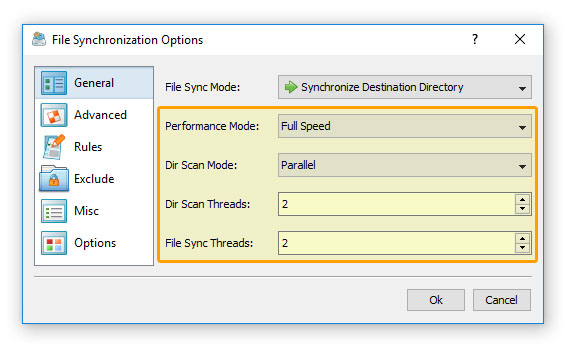
The 'Advanced' file synchronization options tab provides a number of different file copy modes optimized for different hardware configurations and user-specific needs: 
In addition, the 'Advanced' file synchronization options tab provides a number of performance, fault tolerance and recovery options: 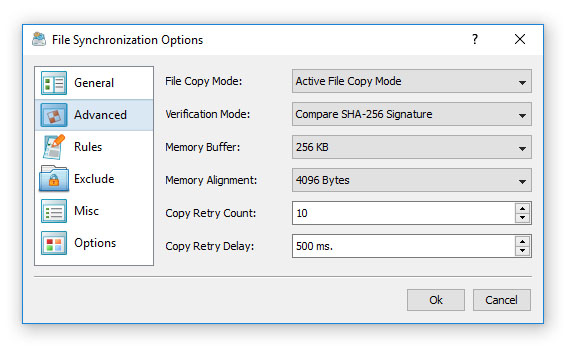
The 'Options' tab provides the ability to control which file meta data is copied and allows one to enable/disable various security and verification options. 
File Synchronization Logs DiskBoss provides the ability to save different types of file synchronization logs allowing one to keep track of performed file synchronization operations and record file synchronization errors. In order to enable file synchronization logs for a file synchronization command, open the file synchronization options dialog, select the 'Misc' tab, enable one or more file synchronization logs and specify directories where to save the log files. 
For each log file, the user is provided with the ability to specify the log file format (plain text or Excel CSV), the log file mode and the log files history. By default, DiskBoss will save an individual log file for each file synchronization operation, but the user can switch to consolidated hourly, daily or monthly logs files, which will be kept in the file synchronization logs directory according to the user-specified number of days. Pre-Configured File Synchronization Commands DiskBoss provides the user with the ability to pre-configure custom file synchronization operations as user-defined commands and execute such commands in a single mouse click using the DiskBoss GUI application or direct desktop shortcuts. 
User-defined commands may be managed and executed through the commands dialog or the commands tool pane. In order to add a new command through the commands pane, press the right mouse button over the pane and select the 'Add New - File Synchronization Command' menu item. In order to execute a previously saved command, just click on the command item in the commands tool pane or create a direct desktop shortcut on the desktop. Periodic File Synchronization Sometimes, it may be required to execute a file synchronization operation periodically at specific time intervals. The first option to do that is to configure a periodic job in the DiskBoss GUI application and select the required file synchronization command to be executed periodically. Another option is to use DiskBoss Server, which runs as a service in the background and may be used to periodically execute file synchronization operations in a fully automatic, unattended mode. 
In order to add a new periodic job, select the 'Tools – Manage Periodic Jobs' menu item and press the 'Add' button. On the periodic job dialog, select the file synchronization command that should be executed and specify the time period. Real-Time File Synchronization DiskBoss Ultimate and DiskBoss Server provide the ability to monitor one or more disks or directories and automatically execute a file synchronization operation after a user-specified number of changes is detected. 
In order to execute a file synchronization command using the DiskBoss real-time disk change monitor, create a new disk change monitoring command, specify one or more disks or directories that should be monitored, select the 'Actions' tab, specify the number of disk changes that should trigger the file synchronization command and selected the name of the file synchronization command that should be executed once the disk change monitor reaches the specified number of changes. Synchronizing Files Using the DiskBoss Command Line Utility In addition to the GUI application, DiskBoss Ultimate and DiskBoss Server provide a command line utility allowing one to execute file synchronization commands form batch files and shell scripts. The command line utility is located in the '<ProductDir>/bin' directory. Command Line Syntax: diskboss -sync -source <Source Directory> -dest <Dest Directory> This command synchronizes files between directories, local disks or network shares. diskboss –execute <Pre-Configured File Synchronization Command> This command executes the specified pre-configured file synchronization command. Parameters: -source <Source Directory> This parameter specifies the source directory for file synchronization. In order to ensure proper parsing of command line arguments, directories and file names containing space characters should be double quoted. -dest <Destination Directory> This parameter specifies the destination directory for file synchronization. In order to ensure proper parsing of command line arguments, directories and file names containing space characters should be double quoted. Options: -sync_mode <SD | SUD | SAD | STW | STA> SD - Sets the sync-destination file synchronization mode (Default) All changes made in the source directory will be propagated to destination. Files deleted from the source directory will be deleted from destination. All files changed or deleted in destination will be restored from source. SUD - Sets the update-destination file synchronization mode Newly created and modified source files will be copied to destination. Files deleted from the source directory will be deleted from destination. Files deleted from the destination directory will be restored from source. SAD - Sets the accumulate-destination file synchronization mode Newly created and modified source files will be copied to destination. Files deleted from the destination directory will be restored from source. Newly created and modified destination files will be kept in place. STW - Sets the two-way file synchronization mode Newly created and modified files will be synchronized in both directions. Files deleted from the source directory will be deleted from destination. Files deleted from the destination directory will be restored from source. STA - Sets the two-way accumulate file synchronization mode Newly created and modified files will be updated in both directions. Files deleted in one location will be restored from the second location. After finishing the synchronization process both locations will be identical. -streams <StreamCount> This parameter specifies the number of parallel file synchronization streams. -copy_dacl This parameter instructs to copy files' access control lists (DACL). -copy_sacl This parameter instructs to copy files' security control lists (SACL). -copy_owner This parameter instructs to copy files' user/group information. DiskBoss File Synchronization Performance DiskBoss is optimized for the modern hardware architectures and it is capable to sync files using multiple parallel file synchronization streams. When synchronizing large files stored on fast NVMe SSD disks, the performance of the DiskBoss file synchronization operations reaches up to 1,068 MB/sec with a single file synchronization stream, increases up to 1,840 MB/sec with two parallel file synchronization streams and scales up to 3,220 MB/sec with four parallel streams allowing one to synchronize huge amounts of data very fast. 
When synchronizing medium-sized files stored on fast NVMe SSD disks, the performance of the file synchronization operations reaches up to 873 MB/sec with a single file synchronization stream, increases up to 1,650 MB/sec with two parallel file synchronization streams and scales up to 2,816 MB/sec. Usually, processing large numbers of small files incurs significant performance degradations, but in the case of NVMe SSD disks, synchronizing small files still results in a very high performance level reaching up to 598 MB/sec with a single file synchronization stream, increasing up to 927 with two parallel file synchronization streams and scaling up to 1,273 MB/sec with four parallel file synchronization streams. 
Regular SATA SSD drives are significantly slower than NVMe SSD drives, but still deliver a very respectable performance level. For example, when synchronizing large files stored on regular SATA SSD drives, the performance of the file synchronization operations reaches up to 330 MB/Sec with a single file synchronization stream and scales up to 478 MB/sec when synchronizing large files with 4 parallel file synchronization streams. Synchronizing files stored on NAS storage devices via a network is more complicated because the user needs to take into account the speed and the latency of the network. If the computer, on which DiskBoss is installed, is connected to the NAS storage device via a high-speed, low-latency network, the performance of the file synchronization operations may reach up to 79 MB/sec with a single file synchronization stream and scale up to 112 MB/sec with four parallel file synchronization streams. 
On the other hand, if DiskBoss will need to access network shares via the Internet or via a long-distance, high-latency network, the performance of the file synchronization operations will be relatively slow. One of the options to increase the performance of the file sync operations in such configurations is to set the 'Parallel' directory scanning mode and increase the number of parallel file synchronization streams to 8 or even 16 disregarding how many CPUs are actually installed on the computer. 
If the user needs to synchronize a large number of small files, the 2.5 Gigabit Ethernet also provides very significant improvements over the regular Gigabit Ethernet network. With a single file synchronization thread, DiskBoiss reaches up to 772 Files/Sec and scales up to 2007 Files/Sec, which is a very significant 68% improvement compared to the regular Gigabit Ethernet. 
When synchronizing large files via the 2.5 Gigabit Ethernet, DiskBoiss reaches up to 152 MB/Sec with a single file synchronization thread and scales up to 278 MB/Sec with 4 parallel file synchronization threads, which is close to the theoretical maximum of the 2.5 Gigabit Ethernet. 
Modern USB flash drives provide plenty of the storage space and are reasonably fast allowing one to store vast amounts of data for backup purposes. When synchronizing large files stored on a high-speed USB flash drive, DiskBoss can reach up to 267 MB/sec with a single file synchronization stream. But, with two parallel file synchronization streams, the performance of the file synchronization operations degrades to 170 MB/sec and remains slightly degraded with more parallel file synchronization streams showing that USB flash drives are significantly less scalable than NVMe and SATA SSD drives.
|
DiskBoss News
|